Optimizing for search and AI crawlers (SEO & GEO)
Last checked with Wasp 0.24, Lighthouse 13, and industry standards (as of Jun 8, 2026).
This guide depends on external libraries or services, so it may become outdated over time. We do our best to keep it up to date, but make sure to check their documentation for any changes.Search engine optimization (SEO) and generative engine optimization (GEO) are about making your app visible and attractive to search engines, social media platforms, and AI assistants.
Where to optimize
In general, we recommend applying the following optimization techniques to your content pages, not your app pages. Think about which pages you want to be surfaced to users, that provide good information about your app to a wide audience.
-
Content pages include your landing page, about page, pricing page, and other marketing pages. These are the pages you want to show up in search results and link previews. They usually don't change much often, nor based on who visits them. SEO is most effective for these.
-
App pages include your dashboard, profile page, settings page, a form, chat interface, or any page that shows dynamic content based on user data. These pages should be hidden from other users, as they contain personalized data. They also can't be meaningfully indexed, since their main goal is to be interacted with, not read.
You can use this broad distinction to decide which pages you apply SEO techniques to. For example, you definitely want ChatGPT to be able to read your landing page so it can recommend your site to users, but you definitely don't want Google to recommend some user's specific dashboard page to other users.
Measuring your SEO
We recommend first to measure your app against common industry tools and see where you stand. Then, you can pick the techniques that are most relevant to your app and focus on those. After applying them, measure again to see how much they improved your score, and if there are any new issues to fix.
SEO can come with costs; at a minimum, the cost of development time and maintenance burden. So while there's always room for improvement, it's important to focus on the techniques that will give you the biggest boost. A little improvement can go a long way, and you don't need to get a perfect score to see significant benefits.
Full optimization of the Wasp app only happens on the production build, not the development server. Running Lighthouse or other tools against wasp start won't reflect what crawlers and users actually get. Always run it against your production build, either locally or after deploying.
Lighthouse
Lighthouse should be the first tool you use to measure your website's readiness for search engines and AI assistants. It will score your page on a number issues and give you a neat list of which ones you need to fix, ordered by importance.
|
|
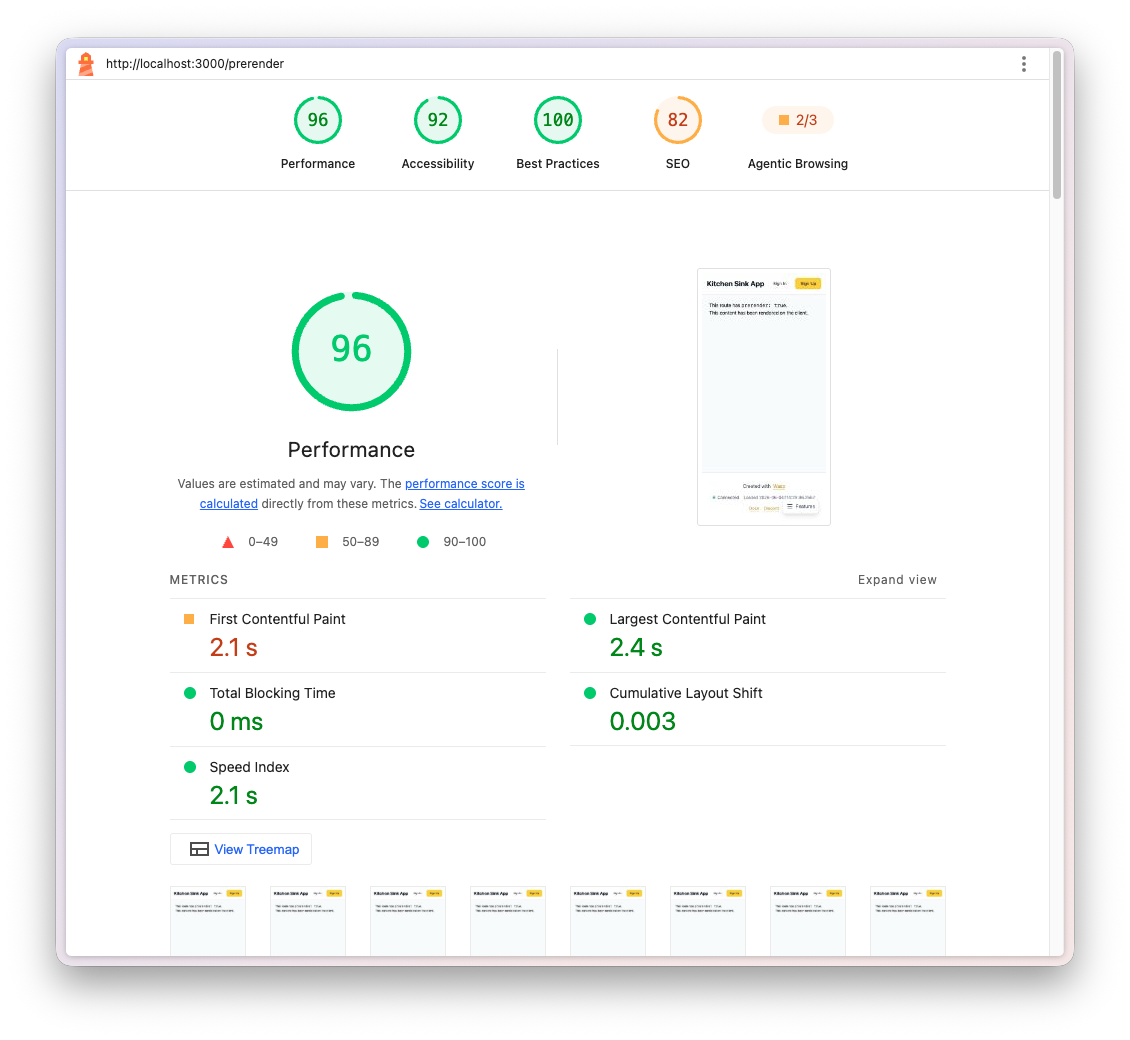
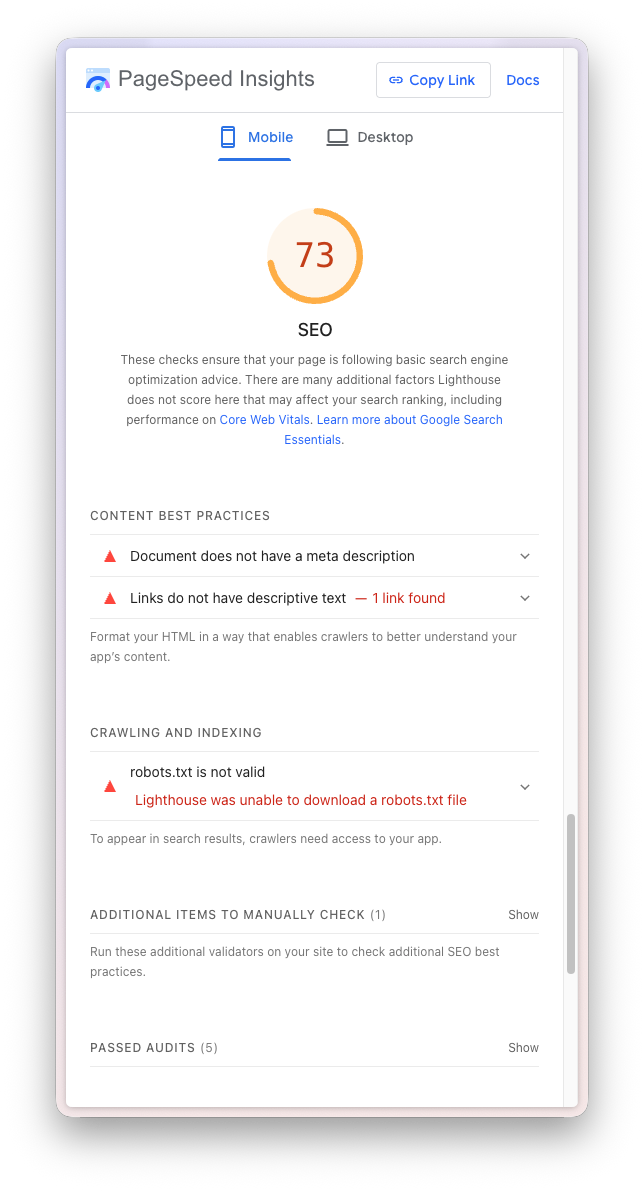
There are four main categories of issues (Performance, Accessibility, Best Practices, and SEO), and all of these will be important for how your pages perform in search engines and AI assistants. For example, Google uses page speed as a ranking factor, and AI assistants will be more likely to read and recommend your site if it's accessible.
A straightforward way to run Lighthouse is through the command line:
# First, build and start the production build of your app:
$ wasp build
$ wasp build start

# While the server is running, open another terminal and run Lighthouse:
$ npx lighthouse http://localhost:3000 --preset=desktop --view

# You can change the URL to a specific page or to point to your deployed app if you want to test that instead.
# Remove the --preset=desktop argument to test the mobile experience instead.
It will take a minute to run (you'll see an automated browser window while it runs), and then it will save your report as an HTML file and open it.
Using the Lighthouse command-line interface as we just did is a good way to run it regularly during development, and let your AI assistant read the report and fix issues. You can also run it directly inside the Chrome DevTools, or through the online service (but it will only work for deployed apps).
Search Console
Google Search Console is a free service from Google that shows you how your deployed site appears in Google Search, which queries show it, and how many clicks it gets.
It will also show you any issues it finds when crawling your site, and guide you through fixing them. It's a must-have for monitoring your SEO performance and catching any issues early on.
Single-purpose tools
Some SEO techniques have specific tools available to check if they're implemented correctly. Inside the links for each technique below, you will find a mention to that tool if it exists, and we recommend using it to check your implementation.
Optimization techniques
Good SEO comes down to a few separate problems. We ordered them here by their effort-impact ratio, so you can focus on the techniques that will give you a bigger boost for less effort first. These are:
- Telling crawlers what each page is about, with meta tags.
- Making your content visible without running JavaScript, with prerendering.
- Helping crawlers understand your content with semantic markup and structured data.
- Making your pages smaller.
- Giving crawlers the standard files they look for.
These are general techniques that apply to most websites, but there are many more you can use depending on your specific app and goals. You can start with these, and explore more as needed. Keep in mind that these techniques can only amplify your content, not replace it; we talk more about that below.
Meta tags
Search engines and social platforms read <meta> tags from your HTML to decide what to show in results and link previews: the page title, its description, and the preview image.
You can set tags for your whole app through the head field of your app declaration:
import { app } from "@wasp.sh/spec"

export default app({
  // ...
  title: "My App",
  head: [
    "<link rel='icon' href='/favicon.ico' />",
    "<meta name='description' content='Your apps main description.' />",
    "<meta property='og:title' content='My App' />",
    "<meta property='og:image' content='https://your-app.com/banner.webp' />",
  ],
  // ...
})
For tags that change from page to page, or depend on dynamic data, you can render <meta> tags directly inside a page component using React's support for <meta> tags:
- JavaScript
- TypeScript
export function ProductPage({ productId }) {
  const product = useProduct(productId);

  return (
    <>
      <meta name="description" content={product.description} />
      <meta property="og:title" content={product.name} />
      <meta property="og:image" content={product.imageUrl} />

      {/* Twitter/X falls back to the og: tags for everything else;
          this tag enables the large preview layout */}
      <meta name="twitter:card" content="summary_large_image" />

      {/* The "original" URL of this page, without tracking parameters,
          so crawlers don't index duplicate variations of it */}
      <link
        rel="canonical"
        href={`https://your-app.com/products/${productId}`}
      />

      <h2>{product.name}</h2>
      <p>{product.description}</p>
      {/* ... */}
    </>
  );
}
export function ProductPage({ productId }) {
  const product = useProduct(productId);

  return (
    <>
      <meta name="description" content={product.description} />
      <meta property="og:title" content={product.name} />
      <meta property="og:image" content={product.imageUrl} />

      {/* Twitter/X falls back to the og: tags for everything else;
          this tag enables the large preview layout */}
      <meta name="twitter:card" content="summary_large_image" />

      {/* The "original" URL of this page, without tracking parameters,
          so crawlers don't index duplicate variations of it */}
      <link
        rel="canonical"
        href={`https://your-app.com/products/${productId}`}
      />

      <h2>{product.name}</h2>
      <p>{product.description}</p>
      {/* ... */}
    </>
  );
}
Read more at our dedicated <meta> tags guide:
Meta tags »
The full set of recommended tags, image guidelines, and testing tools.
Prerendering
By default, Wasp apps are single-page applications (SPAs), so you get fast navigation and responsive interactions. In an SPA, the HTML files your browser downloads are mostly empty and have just enough to load the JavaScript code that actually powers the app. Browsers execute the JavaScript to show you content.
Most search engines (like Google) can also execute JavaScript when indexing a page too. But some crawlers (and many AI assistants) don't run JavaScript at all. So they see only the empty HTML, not your actual content. As such, they can't answer questions about your website, and they'll mostly ignore it.
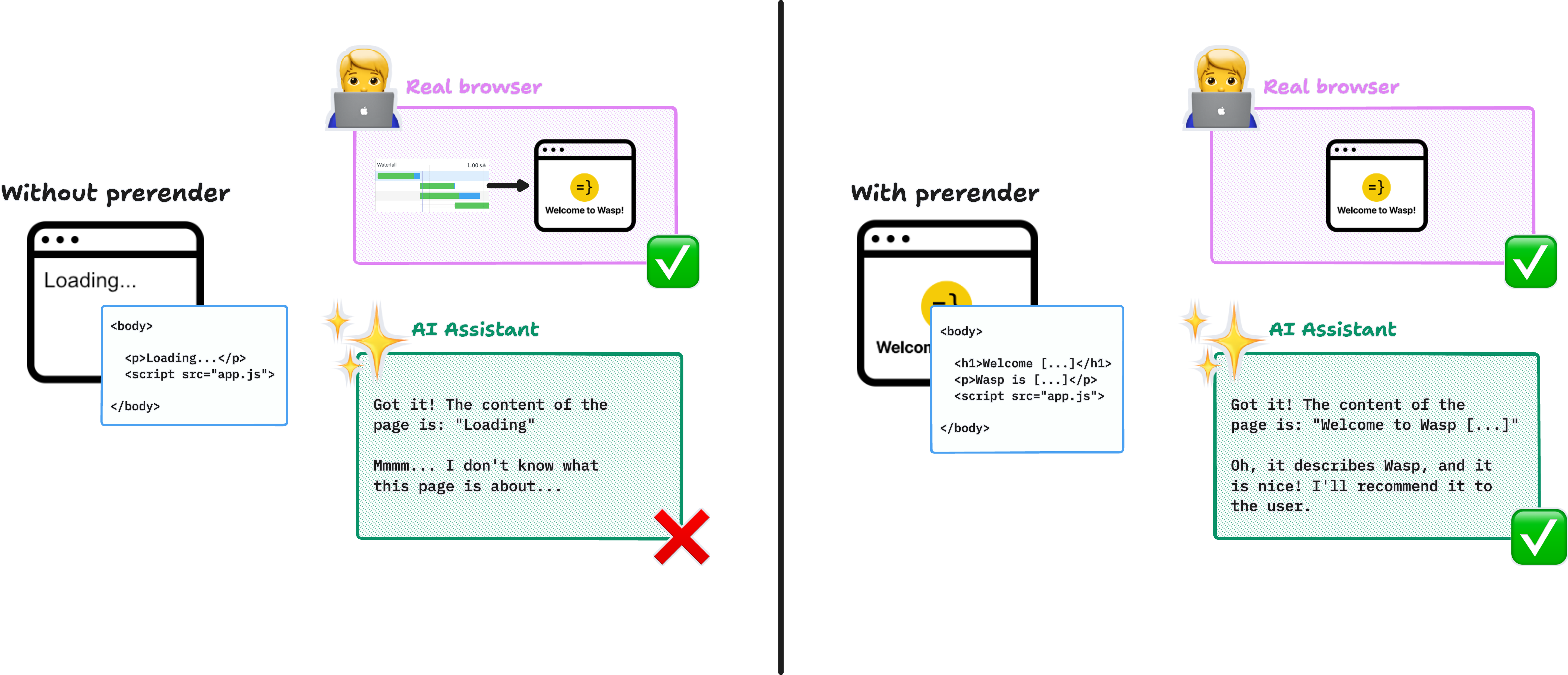
However, Wasp can prerender chosen routes to static HTML at build time, so the content is readable in the initial file even without JavaScript. Browsers will still download and execute the rest of the app, and present the same experience as with a pure SPA, so you get the best of both worlds. You can opt-in per route:
import { app, page, route } from "@wasp.sh/spec"
import { LandingPage } from "./src/LandingPage" with { type: "ref" }

export default app({
  // ...
  decls: [
    route("LandingRoute", "/", page(LandingPage), {
      prerender: true
    }),
  ],
})
Prerendering can't be used on routes with dynamic paths or on auth-required pages. You can read more in our prerendering documentation:
Prerendering »
How it works, when to use it, and how to avoid hydration mismatches.
Semantic markup
Most crawlers and screen readers can't see your inside images, so every meaningful image needs a text description through its alt attribute. Missing alt text is one of the most common issues a Lighthouse SEO audit flags.
- JavaScript
- TypeScript
<img
  src={testimonial.avatarSrc}
  alt={`Profile picture of ${testimonial.name}`}
/>;
<img
  src={testimonial.avatarSrc}
  alt={`Profile picture of ${testimonial.name}`}
/>;
If an image is purely decorative, you can give it an empty alt="" so crawlers know to ignore it. But if the image conveys information, like a product photo or a profile picture, the alt text should describe that information.
You should also use semantic HTML to help crawlers understand your content. For example, use one <h1> per page for the main heading, and use <h2>, <h3>, etc. for subheadings in order. Most indexers will understand that as your page's subject matter and closely relate it with those terms. You should also use descriptive link text instead of generic phrases like "click here," so crawlers know what the linked page is about.
Links deserve special attention, since crawlers discover your pages by following <a> tags. A <button> with an onClick handler that navigates is invisible to them, so your structural navigation (header, footer, and in-content links) should always use real links. In Wasp, that means using the Link component, which renders an <a> tag and type-checks your routes. Save programmatic navigation for actions, like redirecting after a form submission.
- JavaScript
- TypeScript
import { Link } from "wasp/client/router";

export function Navbar() {
  return (
    <nav>
      {/* ❌ Crawlers can't see or follow this navigation */}
      <button onClick={() => navigate("/pricing")}>Pricing</button>

      {/* ✅ A real link they can discover */}
      <Link to="/pricing">Pricing</Link>
    </nav>
  );
}
import { Link } from "wasp/client/router";

export function Navbar() {
  return (
    <nav>
      {/* ❌ Crawlers can't see or follow this navigation */}
      <button onClick={() => navigate("/pricing")}>Pricing</button>

      {/* ✅ A real link they can discover */}
      <Link to="/pricing">Pricing</Link>
    </nav>
  );
}
You can check Semrush's post on semantic HTML to see how it looks and which effects it has on SEO:
What Is Semantic HTML? And How to Use It Correctly »
From Semrush
Structured data
By default, crawlers and AI engines only read your content as text. That is, your page is a bag of words, and they have to guess what those words mean and how they relate to each other. Structured data is a way to give them more information about your content in a machine-readable format, so they can understand it better and show richer results.
If you've ever looked for a recipe on Google and seen a search result with a star rating, cooking time, and a photo, that's structured data at work. And for a typical SaaS app you can use it e.g. in the pricing page, to help crawlers identify the different plans, their features, and their prices, and show that directly in their search results page.
You can add structured data to your pages in multiple ways, but the most common is with JSON-LD, which is a script tag with a specific format:
- JavaScript
- TypeScript
export function PricingPage() {
  const pricingPlans = usePricingPlans();

  const structuredData = {
    "@context": "https://schema.org",
    "@type": "WebApplication",
    name: "My travel app",
    applicationCategory: "TravelApplication",
    offers: pricingPlans.map((plan) => ({
      "@type": "Offer",
      name: plan.name,
      price: plan.price,
      priceCurrency: "USD",
      description: plan.description,
    })),
  };

  return (
    <>
      <h1>Our Pricing Plans</h1>
      <p>Choose the plan that works best for you.</p>
      {/* ... */}

      <script type="application/ld+json">
        {JSON.stringify(structuredData)}
      </script>
    </>
  );
}
import type { WebApplication, WithContext } from "schema-dts";

export function PricingPage() {
  const pricingPlans = usePricingPlans();

  const structuredData: WithContext<WebApplication> = {
    "@context": "https://schema.org",
    "@type": "WebApplication",
    name: "My travel app",
    applicationCategory: "TravelApplication",
    offers: pricingPlans.map((plan) => ({
      "@type": "Offer",
      name: plan.name,
      price: plan.price,
      priceCurrency: "USD",
      description: plan.description,
    })),
  };

  return (
    <>
      <h1>Our Pricing Plans</h1>
      <p>Choose the plan that works best for you.</p>
      {/* ... */}

      <script type="application/ld+json">
        {JSON.stringify(structuredData)}
      </script>
    </>
  );
}
You can read more about structured data in Google's documentation:
Introduction to structured data markup in Google Search »
From Google
Reduce your page size
Search engines factor page speed into ranking through Core Web Vitals; and the smaller the page, the faster it loads. A couple of things help the most:
-
Optimize your images. Serve images at the size they're displayed, and prefer modern formats like WebP or AVIF. And importing an image from your source code lets Vite hash its filename so browsers can cache it aggressively. See Chrome Lighthouse's docs for more tips on image optimization:
ExternalImprove image delivery »
From Chrome
-
Lazy-load heavy parts of the page. Wasp can "split" your components so that their HTML, JS, and CSS code don't get loaded upfront. You can split large or below-the-fold components on demand with
React.lazy:- JavaScript
- TypeScript
src/pages/LandingPage.jsximport { lazy } from "react";// This component might pull in a large graphing// library, and it's not at the top of the page,// so we don't load it upfront.const InteractiveGraph = lazy(() => import("@src/components/InteractiveGraph"));export function LandingPage() {return (<div><h1>Welcome to My App</h1><p>Here's some important information about our app...</p>{/* Loaded after the rest of the page. */}<Suspense fallback={<p>Loading graph...</p>}><InteractiveGraph /></Suspense></div>);}src/pages/LandingPage.tsximport { lazy } from "react";// This component might pull in a large graphing// library, and it's not at the top of the page,// so we don't load it upfront.const InteractiveGraph = lazy(() => import("@src/components/InteractiveGraph"));export function LandingPage() {return (<div><h1>Welcome to My App</h1><p>Here's some important information about our app...</p>{/* Loaded after the rest of the page. */}<Suspense fallback={<p>Loading graph...</p>}><InteractiveGraph /></Suspense></div>);}ExternalReact.lazy »
From React docs
Well-known files
Crawlers look for a couple of standard files at the root of your site, for example:
- A
robots.txtfile tells crawlers which paths they may visit. - A
sitemap.xmlfile lists the pages you want crawlers to find and index. - An
llms.txtfile that can give instructions to AI assistants about how to interact with your site and which pages to read.
Place these in the public directory at the root of your project. Files there are served as-is from the root path, so public/robots.txt becomes available at https://your-app.com/robots.txt:
.
└── public
    ├── favicon.ico
    ├── robots.txt
    ├── llms.txt
    └── sitemap.xml
robots.txt
A minimal robots.txt lets crawlers visit everything except the routes you don't want them to waste time on, like your admin, API, and auth pages:
User-agent: *
Allow: /
Disallow: /admin/
Disallow: /api/
Disallow: /auth/
robots.txt doesn't hide pages from search resultsrobots.txt only prevents crawling, not indexing. If another site links to your /admin/ route, Google can still index that URL without ever visiting it.
To reliably keep your app pages out of search results, add a robots meta tag to those page components:
- JavaScript
- TypeScript
export function DashboardPage() {
  return (
    <>
      <meta name="robots" content="noindex, nofollow" />

      <h1>Your Dashboard</h1>
      {/* ... */}
    </>
  );
}
export function DashboardPage() {
  return (
    <>
      <meta name="robots" content="noindex, nofollow" />

      <h1>Your Dashboard</h1>
      {/* ... */}
    </>
  );
}
You can check Google's guide on robots.txt for more details and examples:
Introduction to robots.txt »
From Google
sitemap.xml
A sitemap lists the URLs of your site that you want indexed. Crawlers can usually discover your pages just by following the links between them, but for a brand-new app with few external links pointing at it, a sitemap is the fastest way for them to find all your routes. You can also submit it to Search Console to monitor how Google indexes your pages.
Content pages are usually few and stable, so it's easy to write public/sitemap.xml by hand, or to ask your AI assistant to generate it from the routes in your main.wasp.ts.
An outdated sitemap, listing broken URLs or missing new ones, is worse than no sitemap at all. If you add one, remember to regenerate it whenever your content pages change.
You can check Google's guide on sitemaps for more details:
Learn about sitemaps »
From Google
llms.txt
An llms.txt can direct AI assistants to the main pages they should look at to learn about your app. LLMs are quite good at understanding Markdown, so it's usually written in that format, but you can use any format you want:
# MyTravelApp

> MyTravelApp is a web application that helps users plan their trips.

## Docs

- [Features](https://mytravelapp.com/features): What the app can do.
- [Pricing](https://mytravelapp.com/pricing): Plans and prices.
- [API documentation](https://mytravelapp.com/api-docs): How LLMs can interact with the app on a user's behalf.

## Getting started

- [Demo](https://mytravelapp.com/demo): Try the app without signing up.
- [Sign up](https://mytravelapp.com/signup): Create an account.
- [Dashboard](https://mytravelapp.com/dashboard): Where users manage their trips after signing up.

## Optional

- [Blog](https://mytravelapp.com/blog): Travel tips and product updates.
You can also treat llms.txt as a more comprehensive, "alternative" way of presenting information specifically for AI assistants. In this case, instead of pointing to your pages, you'd write out their content in full, so an assistant can learn everything about your app without rendering and parsing the actual pages:
# MyTravelApp

MyTravelApp is a web application that helps users plan their trips. It lets
you build day-by-day itineraries, track your budget, and share plans with
travel companions.

## Features

- **Itinerary builder.** Add flights, hotels, and activities to a timeline
  that automatically sorts them by date and warns you about overlaps.
- **Budget tracking.** [...]

## Pricing

MyTravelApp is free for one active trip. The Pro plan is $9/month and unlocks
unlimited trips, offline access, and [...]

## Frequently asked questions

**Can I use MyTravelApp offline?** Yes, Pro users can download trips for
offline access [...]

[...]
You can check the llms.txt proposal website for more details and examples.
The /llms.txt file »
From Answer.AI
Other techniques
There are many more techniques you can use to optimize your app for search engines and AI assistants. There's a wealth of information online about SEO, but we recommend starting with Google Search's documentation site, which is a complete reference on what they look for in a page, and how to optimize for it. They also added a section on optimizing for AI assistants.
Their starter guide is a good place to begin:
SEO Starter Guide »
From Google Search
Good content
Everything above is a technical checklist: you apply each technique, measure, and check it off. But these techniques can only amplify what's already there. If your page doesn't have useful, relevant content, no amount of SEO will make it rank well. So make sure your content is high-quality, well-written, and provides value to your users. Spamming keywords, using clickbait titles, or generating unreviewed content by the pound won't help you in the long run, and can even get you penalized by search engines. Focus on creating content that answers your users' questions and solves their problems.
You should read Google's guide on creating good content for more tips on what to focus on when creating content pages:
Creating helpful, reliable, people-first content »
From Google